


We’ve all been there cleaning up storage and accidentally deleting a file we still need… or worse, realizing later that something important is gone.
The good news? Your data may not be permanently lost but time is critical if you want a chance to recover it.
In this guide, you’ll learn the best ways to recover deleted files on your iPhone, including photos, messages, notes, and documents.
⚡ Quick Tip:Before we go any further, disconnect your iPhone from the internet (use airplane mode) and open this article on another device. Or you turn off iCloud Drive syncing. I’d recommend the former, as it’s much faster.
📂 Why Deleted Files Can Still Be Recovered
Deletion doesn’t work as most people think. When you hit that delete button, contrary to what most people think, the file doesn’t just disappear from your phone. Rather, the data is moved to a hidden folder at the root of your storage and marked as overwriteable.
When you hit delete, your iPhone simply marks the file as available space. The actual data stays hidden in storage until something new replaces it.
⚠️ Important:This is why “deleted” data is recoverable. But you’ll need to act quickly because once the data is overwritten, the chance of recovery is zero.
How To Recover Deleted Files On Your iPhone
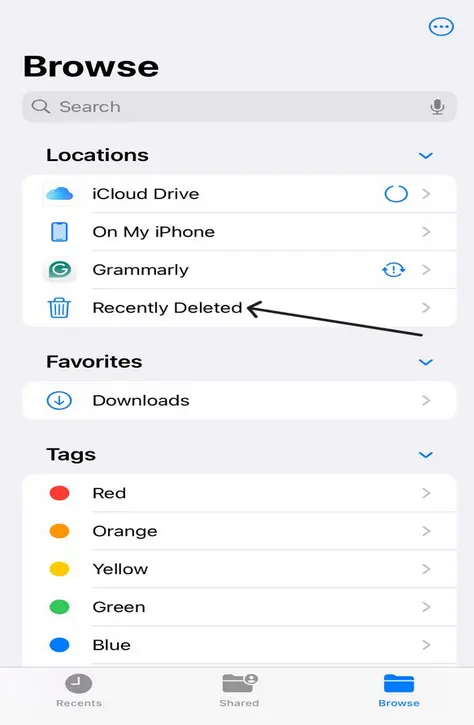
iPhones have a recently deleted folder in the Files app. Here you can recover files you deleted recently, only up to 30 days ago. To do this,
| Step | Action |
|---|---|
| 1 | Open the Files app and tap the Browse tab. |
| 2 | Under Locations, tap Recently Deleted. |
| 3 | Tap the More button, then select Select. |
| 4 | Select the files that you want to keep, then tap Recover. To recover a single file, you can also touch and hold the file, then tap Recover. |
| 💡 Tip | You can also long-press a single file and tap Recover instantly. |
Recover Photos from Photos App
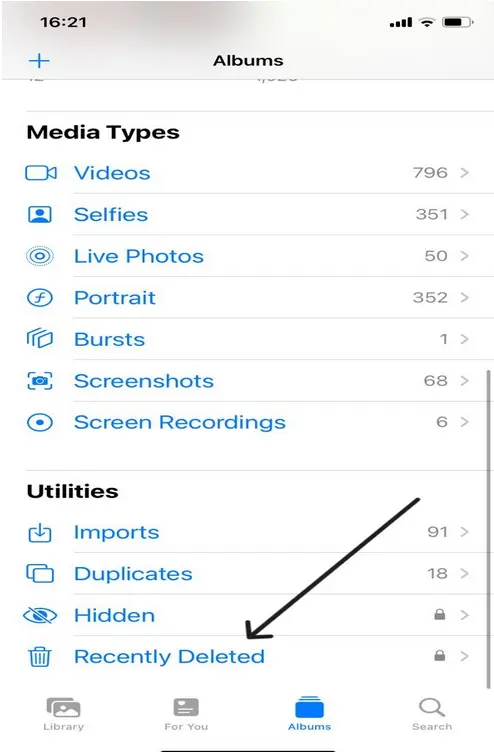
Open the Photos app and tap Albums.

Open Recently Deleted
Scroll down and tap Recently Deleted under Utilities.
Recover Your Photos:
Use Face ID / Touch ID to unlock the Recently Deleted folder.
Tap Select, choose the photos, then tap Recover.
If the data is not in Recently Deleted, your next option is to check your iCloud Backup.
What You Can Recover? Check Your iCloud Drive
If you had iCloud Drive turned on, then there’s a chance the file you deleted is still on your iCloud. This is why I asked you to disconnect your iPhone or turn off iCloud Backup to avoid it being deleted on iCloud in case it’s still there. For this step, I’d recommend you use a PC; both Windows and Mac work fine.| Step | Action |
|---|---|
| 1 | Open your browser |
| 2 | Go to icloud.com |
| 3 | Log in with your Apple ID |
| 4 | On mobile, click the Apps icon located at the top right |
| 5 | Search for your file |
| 6 | Or once logged in, go to Recently Deleted |
| 7 | Check for your files |
This method works for photos, videos, emails, contacts, notes, and messages.
If you were unable to recover your file using this method, all hope isn’t lost yet. You can still try two more things.
Use Third-Party Recovery Tools:
Step 1: Understand the data
Deleted files stay in hidden storage until overwritten.
Step 2: Use recovery tools
Specialized software can scan and recover this hidden data.
Step 3: Be careful
Avoid fake tools and always use trusted software.
Recommended tool: Disk Drill
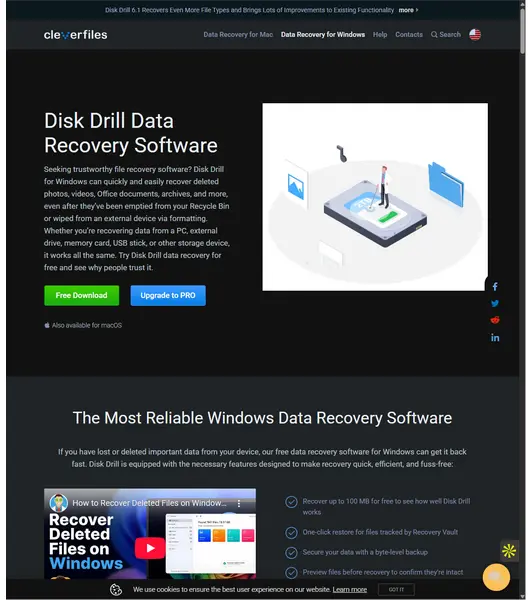
How To Use/Install Disk Drill?
How To contact to Apple Support?
Although not a popular method, users have reported data recovery success by doing this. Here’s what to do.
What to do:
Call Apple Support
Ask to speak with a senior advisor (if you talk to a lower-level person, they'll probably tell you you're out of luck).
The advisor might be able to refresh your media back to the recently deleted folder. From there, you can easily recover them.
If successful, your files may be restored back to Recently Deleted for recovery.
⚠️ Time is critical | Apple server-side backups do not last long. Do note that time is still of the essence in this method, as Apple’s server-side backups don’t last long.
How to Prevent Data Loss in the Future?
💡 Small habits like these can save you from major data loss in the future.
Final Thoughts: Deleted Files Are Not Always Gone Forever
Accidentally deleting files or photos can feel stressful, but in many cases, your data is still recoverable. By acting quickly and using tools like Recently Deleted folders, iCloud backups, and recovery software, you can often bring your lost files back.
The key factor is time — the sooner you try to recover your data, the higher your chances of success. Once data is overwritten, recovery becomes extremely difficult or impossible.
Moving forward, building simple habits like regular backups, cloud storage usage, and careful file management can save you from future data loss and unnecessary stress.
💡 Pro Tip: If you’re upgrading your phone, always back up your data first to avoid losing important files. You can explore more helpful guides below:
- Phone Battery Draining Fast? How to Make Your Phone Battery Last Longer & Protect Its Resale Value
- How to Back Up and Transfer Data Before Upgrading Your Phone (Without Losing Data)
- Phone Running Slow? 10 Easy Ways to Free Up Space on Android & iPhone
- How to Check Your Phone’s Condition Before Selling (Avoid Costly Mistakes)
- How to Protect Your Phone From Hackers: Security Tips, Warning Signs
- How to Factory Reset iPhone or iPad (With or Without Passcode)