


.png)
According to industry stats, over 1.03 billion people use Samsung phones — yet most have barely scratched the surface of what their device can actually do.
So in this guide, I’m going to fix that and walk you through the top 10 hidden Samsung features that go well beyond what most people already know — plus a powerful bonus app at the end.
Quick Tip: Most of these features live inside Samsung’s Labs menus or the Good Lock app. Once you know where to look, you’ll never see your phone the same way again.
Table of Contents:
Top 10 Hidden Samsung Features
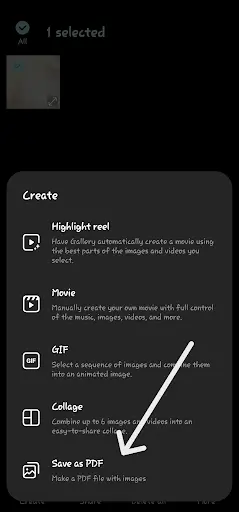
Make a PDF File Out of Images
Ever wanted to quickly convert a document photo into a PDF? You can do it right from your Samsung Gallery — no third-party app required.
- Open the photo and tap the three-dot menu (or “More”).
- Select Print, then choose Save as PDF.
Power-user shortcut: Enable Gallery Labs for a direct “Save as PDF” button. Tap the Menu (☰) icon → Gallery settings → About Gallery → tap the Gallery version repeatedly until it says “Developer mode is enabled.”
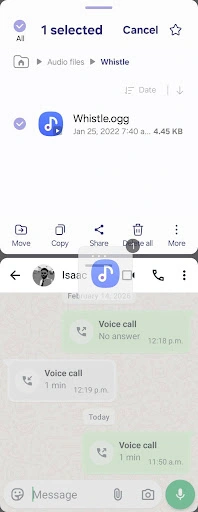
Drag and Drop
You can drag and drop text, images, and other files between apps — just like on Windows. It’s simple, but it takes a little finger gymnastics.
- Press and hold the file with one finger until it pops out.
- While still holding it, use your other hand to navigate to the destination app, then drop.
- Alternatively, open both apps in split screen to make it much easier.
Heads up: this feature doesn’t work in every app, so results will vary depending on where you’re dragging to.
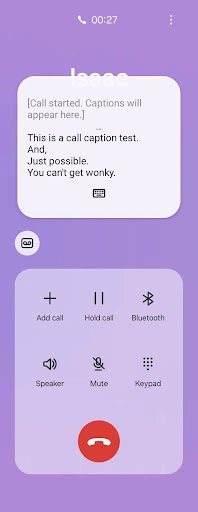
Call Captions
Call Captions automatically generates subtitles for your phone calls. It’s especially useful in noisy environments or if you have hearing difficulties.
- Open the Phone app → tap the three-dot menu (top right).
- Go to Settings → Call captions → toggle it on.
Don’t see Call Captions? Set up something similar via Settings → Accessibility → Hearing enhancements → Live Caption. Note the feature can still be a little wonky in real-world use.
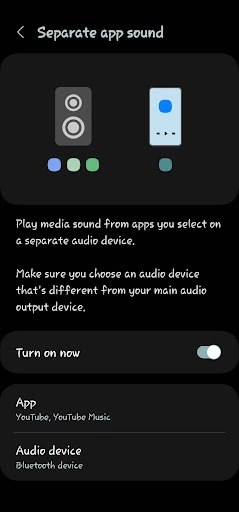
Separate App Sound
One of my personal favorites — it just makes sense. This feature plays audio from one app through a Bluetooth device while every other sound stays on your phone speaker. Play music on a speaker while scrolling TikToks on your phone, with no audio clash.
- Go to Settings → Sounds and vibration → Separate app sound.
- Toggle it on, then pick the app (e.g., YouTube Music).
- Choose a separate output device, such as your Bluetooth speaker, while everything else stays on the phone.
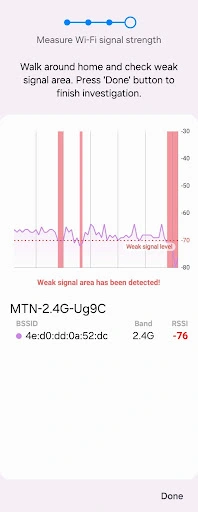
Speed Up Wi-Fi and Find Dead Zones
Called Home Wi-Fi Inspection, this tool lets you test your different Wi-Fi bands (2.4 GHz, 5 GHz, and 6 GHz) and see which one is actually fastest and strongest in any room of your house.
For example, 6 GHz might be fastest on paper, but if it keeps dropping in your bedroom, 5 GHz could give you better real-world speed. A simple tweak that can instantly improve your PS5, laptop, or smart TV connection.
- Go to Settings → Connections → Wi-Fi.
- Tap the three-dot menu → select Intelligent Wi-Fi.
- Tap the Intelligent Wi-Fi version number at the bottom seven times to unlock Connectivity Labs.
- In Connectivity Labs, scroll and select Home Wi-Fi Inspection, then run the test.
Continue Music While Recording Videos
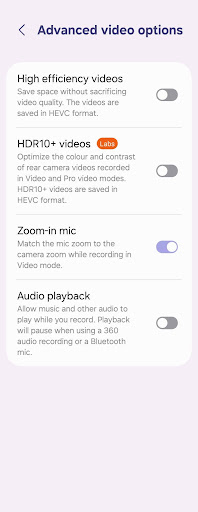
On most phones, the moment you start recording, your music stops — annoying if you wanted that track in the video. Samsung users can kiss that goodbye.
- Open the Camera app → tap the Settings gear icon.
- Go to Advanced video options → toggle on Audio playback.
Upscale Cropped Images
Samsung has a nifty AI image upscaler built into the Gallery app called Detail Enhancer. It kicks in when you crop into an image and save just the cropped part — but you have to turn it on first.
- Open Gallery → tap the Menu (☰) icon.
- Go to Gallery settings → Detail Enhancer → set to Maximum.
Now whenever you crop a photo, you’ll get a prompt to increase the image’s resolution.
Secure Folder
Secure Folder is a private vault inside your phone. It hides apps, photos, videos, and files behind an extra layer of security powered by Samsung Knox — like a second, private phone within your phone.
- Go to Settings → Security and Privacy → Secure Folder and follow the setup.
- Move sensitive apps or files in — they’ll stay locked behind a fingerprint, PIN, or password.
Everything inside Secure Folder is encrypted and kept completely separate from the rest of your device.
Auto Framing on Video Calls
Auto Framing keeps you centered during video calls by automatically adjusting the camera as you move. Lean left or right and it follows; if someone joins the frame, it adjusts to fit them in.
- Start a video call (WhatsApp, Meet, etc.).
- Open the Quick Settings panel → select Video call effects.
- Turn on Auto Framing.
Voice Changer
A playful feature that works exactly as it sounds. Access it through the Edge Panel, powered by Good Lock — perfect for funny clips or surprising friends. It even works in Samsung’s built-in Voice Recorder.
✅ How to Enable
- Swipe out your Edge Panel → tap Settings → find Voice Changer and turn it on.
- If it’s missing, open Good Lock, install Sound Assistant, and activate Voice Changer there.
▶ How to Use
- Select a voice effect from the Edge Panel.
- Open your Camera and start recording.
- A message confirms the voice changer is active — your video records with the altered voice.
Good Lock is one of the most powerful apps on Samsung devices. It doesn’t do just one thing — it gives you deep control over how your phone looks, feels, and behaves through a set of focused modules.
Getting started: download Good Lock from the Galaxy Store, then install the modules you want. Each one works like its own mini settings lab.
Conclusion
Samsung phones are packed with features most users never notice — from productivity boosts like drag and drop, to smart tools like Wi-Fi band testing, to privacy protection powered by Samsung Knox. There’s a lot more under the hood than meets the eye. Now that you know these hidden features, it’s time to actually use them. Enjoy!
Final Thoughts
Learning your phone’s hidden features doesn’t just make daily life easier — it also helps you get the most out of a device you already paid for.
And when it’s finally time to upgrade, a well-maintained Samsung in good working condition holds its value far better. Thinking of trading up? Get an instant quote and sell your old Galaxy for top dollar on SellMyCellPhone.com.
Helpful Guides:
Learn more before selling:
Selling your Samsung on SellMyCellPhone.com takes just a few minutes. Get a quote, ship it free, and get paid within 1 business day of it arriving.